
Ok, now it's time to try some of this on your own. We have added an extra menu and some tool-bars to help you do your own drawing. You are going to create a circuit containing a 3-input AND gate and simulate it. So that you will have a permanent record of your first digital circuit, you may print the drawing, or save it to a file, or both. Don't try to use the Internet Explorer menus or tool-bars to interact with your drawing.
 .
.

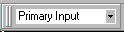
You may now simulate your gate. Notice the small tool bar that has appeared near the top of the page. There are two boxes in this tool bar. The top one is for typing inputs into the circuit, the second will show the values of the primary outputs. Go ahead and type your first input here, and press Enter. There are eight possible inputs:
0,0,0 0,0,1 0,1,0 0,1,1 1,0,0 1,0,1 1,1,0 and 1,1,1
You should try them all. The value of the primary output will appear in the second tool-bar box. The values of each wire will also appear in the drawing area. Once you are done simulating your circuit, you may print it or save it to a file. Use the ".cks" extension when you save your file. When printing or saving, make sure to use the menu bar right above the gate-selector. The Internet Explorer tool bar commands won't print or save your circuit properly.
You have now finished with the Basics of Digital Logic. You should continue with the Fundamentals of Logic Design. If you want to practice drawing digital circuits, the drawing window on this page can be used to draw whatever circuit you wish. Experiment with the buttons and the menu commands to find out what they do. The Fundamentals of Logic Design begins with a tutorial on drawing windows.
_
_
_